
基础配置
Setting
MacOS下 按 Command+, (或地址栏输入 about:preferences )进入设置页,这里能配置的比较少,主要关掉一些提醒和搜索推荐
-
General
- Always check if Firefox is your default browser
- Ask before quitting with CMD Q
-
Search
- Show trending search suggestions
- Address Bar ,close all
about:config
地址栏输入 about:config 接受风险提示后进入,这里有更多高级选项可以配置
# disable the tab animation
add ui.prefersReducedMotion number set its value to 1

# Disable Quick Search
set accessibility.typeaheadfind.manual to false

# don't exit on escap
set browser.fullscreen.exit_on_escape to false

# 禁用 tab hover
set browser.tabs.hoverPreview.enabled to false

# 禁用 hover 显示 tab 缩略图
set browser.tabs.hoverPreview.showThumbnails to false

# show full url
set browser.urlbar.trimURLs to false

# disable quic(for proxy)
set network.http.http3.enable to false

# disable fullscreen message
set full-screen-api.transition-duration.enter to 0 0
set full-screen-api.transition-duration.leave to 0 0
set full-screen-api.warning.timeout to 0
美化
Firefox 可定制程度非常高,几乎每个地方都可以使用 css 自定义
首先在about:config中将toolkit.legacyUserProfileCustomizations.stylesheets 设置为 true
css 文件需要放在 Firefox 配置文件夹,Linux 在 ~/.mozilla/firefox/ 下,MacOS 位于 ~/Library/Application Support/Firefox/
具体取决于系统及 Firefox 版本
可以在地址栏输入 about:profiles 查看,一般有两个配置,认准 「This is the profile in use and
it cannot be deleted. 」

进入到配置目录里,新建一个名为 chrome 的文件夹, 在 chrome 文件夹里放入背景图片,并新建两个文件: userChrome.css userContent.css
cd '~/Library/Application Support/Firefox/Profiles/fo3ugam7.default-release'
mkdir chrome
touch userContent.css userChrome.css
userChrome.css 负责Firefox 浏览器界面本身,如标签栏、地址栏、工具栏、侧边栏、按钮等外观;userContent.css 负责网页内容区域
chrome 在 Firefox 里指浏览器界面,Google 直接拿去当自家浏览器名了
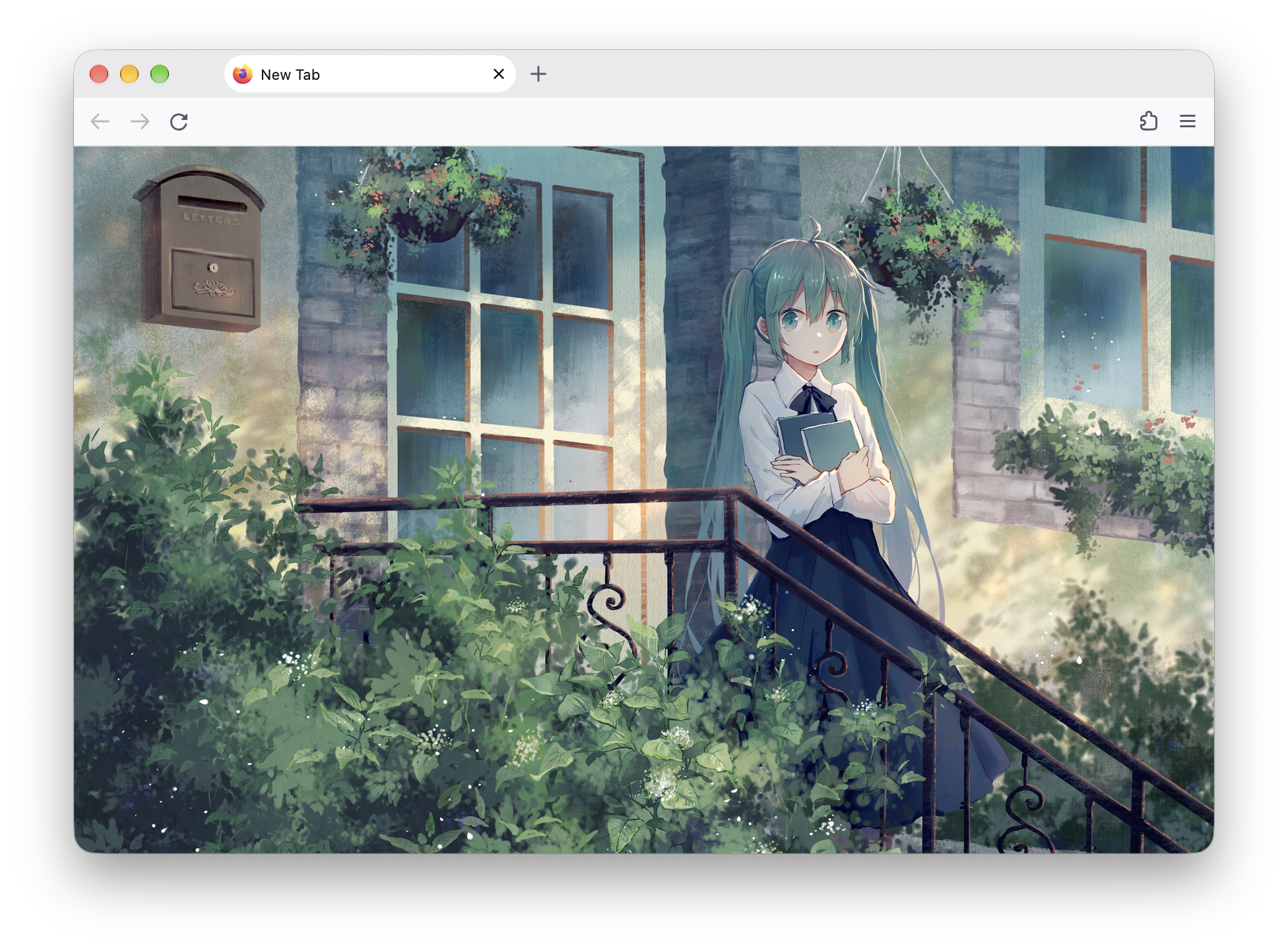
Homepage 背景
突然发现 Firefox 已经支持自定义背景图了!终于 (: ,打开新标签,点击右下角 ✏️ 按钮就行,但我希望隐藏掉 Homepage 一些不必要的元素,依旧采用 userContent.css 自定义
@-moz-document url(about:home), url(about:newtab), url(about:privatebrowsing) {
    /* === Hide 'customize' button === */
    .open-customization-button {
        display: none !important;
    }

    /* === Private mode === */
    .showPrivate {
        display: none !important;
    }

    /* === Background image === */
    body {
        background-image: url("bg.png") !important;
        background-repeat: no-repeat !important;
        background-size: cover !important;
        background-position: center !important;
        background-attachment: fixed !important;
        overflow: hidden !important;
        scrollbar-width: none !important;
    }
}
精简浏览器界面
地址栏、toolbar 上有很多不用的按钮,在 userChrome.css 里隐藏他们
/* urlbar: remove border, shadow, outline, background */
.urlbar-background {
    border: none !important;
    box-shadow: none !important;
    background: var(--toolbar-background-color) !important;
    top: 0 !important;
}
.urlbar-input-container {
    outline: none !important;
}

/* urlbar: remove the "Search with..." */
#urlbar-input::placeholder {
    color: transparent !important;
}

/* urlbarView: background */
.urlbarView-body-outer,
.urlbarView-background,
.urlbarView-body-inner,
.urlbarView {
    background: var(--toolbar-background-color) !important;
    box-shadow: none !important;
}

/* dark mode url bar selected item background */
@media (prefers-color-scheme: dark) {
    .urlbarView-button-result-menu,
    .urlbarView-row[selected] {
        background-color: #4e4d55 !important;
    }
}

/* url bar icon */
#identity-permission-box,
#trust-icon-container,
#reader-mode-button,
#picture-in-picture-button,
#urlbar-revert-button-container,
.searchmode-switcher,
.urlbar-go-button {
    display: none !important;
}

/* 直接禁止 #star-button 会拦截 bookmark 提示框 */
image#star-button {
    display: none !important;
}
#star-button-box:hover,
#star-button-box:active,
#star-button-box:focus,
#star-button-box:focus-visible {
    background: none !important;
}

/* private mode */
#nav-bar-overflow-button,
.private-browsing-indicator-button {
    display: none !important;
}

/* tab: outline  */
.tab-background {
    outline: none !important;
}
效果
其他
远程调试
使用远程调试功能可以很方便的查看 Firefox 原生的 css 样式,自定义 css 时很有用
启用步骤:
- 地址栏输入 about:config
- devtools.chrome.enabled 设置为 true
- devtools.debugger.remote-enabled 设置为 true
- 重启 Firefox
快捷键:
macOS: Cmd + Option + Shift + I
Windows / Linux: Ctrl + Shift + Alt + I
修改 Accel Key
accel key 就是新建 tab,关闭 tab 时使用的那个键,Mac 上是 Command,Linux/Win 上是 control,如果你希望在 Linux / macOS 上快捷键保持一致,可以在 about:config 里修改 ui.key.accelKey 为 91
0 => 禁用
17 => Ctrl键
18 => Alt/Option
91 => win/cmd
224 => Meta(Mac上的命令键??)
ui.key.menuAccessKey : 显示顶部菜单(Linux/win)
Mac使用Control作为“generalAccessKey”,它作为“chromeAccessKey”和“contentAccessKey”发挥着双重作用,